 Multiple ADU USB Devices Multiple ADU USB Devices
The Problem
The OpenAduDevice function returns a handle to the first ADU device it finds.
Unfortunately "first" means the first ADU device encountered during the search.
The sequence of plugging ADU devices into the computer does not reflect their search
order.
Thus if two ADU devices are plugged into the computer there is no guarantee which one
the OpenAduDevice will connect with.
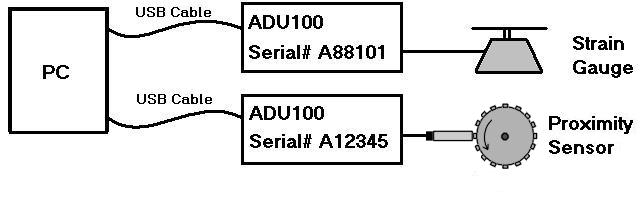
In the example the strain gauge may usually connect to the first OpenAduDevice call and
the proximity sensor to the second OpenAduDevice call. But suddenly one day, the
connections get reversed leaving the application reading weights as counts. This can occur
without any changes being made to the cables, devices or application program.
The Solution
To connect to the correct devices consistently open the device pipe handles with
OpenAduDeviceBySerialNumber.
Open the strain gauge handle with
hScale = OpenAduDeviceBySerialNumber("A88101", 0);
and the proximity sensor handle with
hCounter = OpenAduDeviceBySerialNumber("A12345", 0);
Of course, instead of hard-coding the serial number, it should be stored in the registry
or a .ini file or a database or a persistent property, etc.
Manually Setting Up the Serial Number
During installation of an application the ADU devices must be associated with their
usage. The program might require the technician installing the system to type in the
serial numbers of attached devices. The program could show a set-up screen with fields for
the scale and counter serial numbers. The technician looks at the labels on the ADU
devices to see their serial numbers and types them in.
Using the ShowAduDeviceList Dialog
Alternatively the application program may call ShowAduDeviceList to show the technician
a list of the ADU devices that are attached.
If the program supplies a pointer to an ADU_DEVICE_ID structure when it calls
ShowAduDeviceList then the technician can select the serial number from the list. The
selected serial number is in the ADU_DEVICE_ID structure when the function returns. The
application program can save the serial number as a unique identifier for the scale or the
counter. (for two devices ShowAduDeviceList must be called twice).
See the example code
Using the GetAduDeviceList
Function
 (
requires DLL V2.1.0.0 or higher ) (
requires DLL V2.1.0.0 or higher )
The GetAduDeviceList function accepts an empty list of
ADU_DEVICE_IDs, and populates it with all currently connected ADU
devices. Call this function to obtain a list of ADU Product IDs and
Serial Numbers of connected ADU devices.
Details and examples of this function are located here:
GetAduDeviceList
Simplification When ADU Products Differ
If the ADU devices have different model numbers then life is simpler.
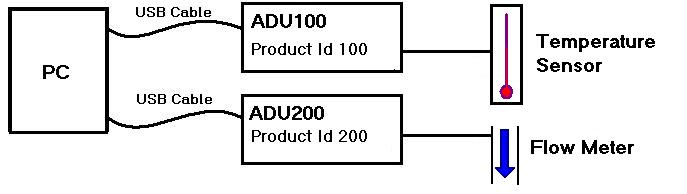
In this case use the OpenAduDeviceByProductId to connect to the correct device. The
temperature sensor is always connected to the ADU100. The flow meter is always connected
to the ADU200.
        hTemperature = OpenAduDeviceByProductId(100, 0);
        hFlow = OpenAduDeviceByProductId(200, 0);
This is preferable because if one of the ADU devices is destroyed it can be replaced
without informing the application of the serial number of the new device.
For example, say a forklift runs over the ADU100. The field technician can replace the
ADU100 without changing any configuration values on the PC. The application program will
use OpenByProductId to connect with the new ADU100 and will not confuse it with the ADU200
device. |